
How to Remove the Gemini Sparkle Watermark from AI Images
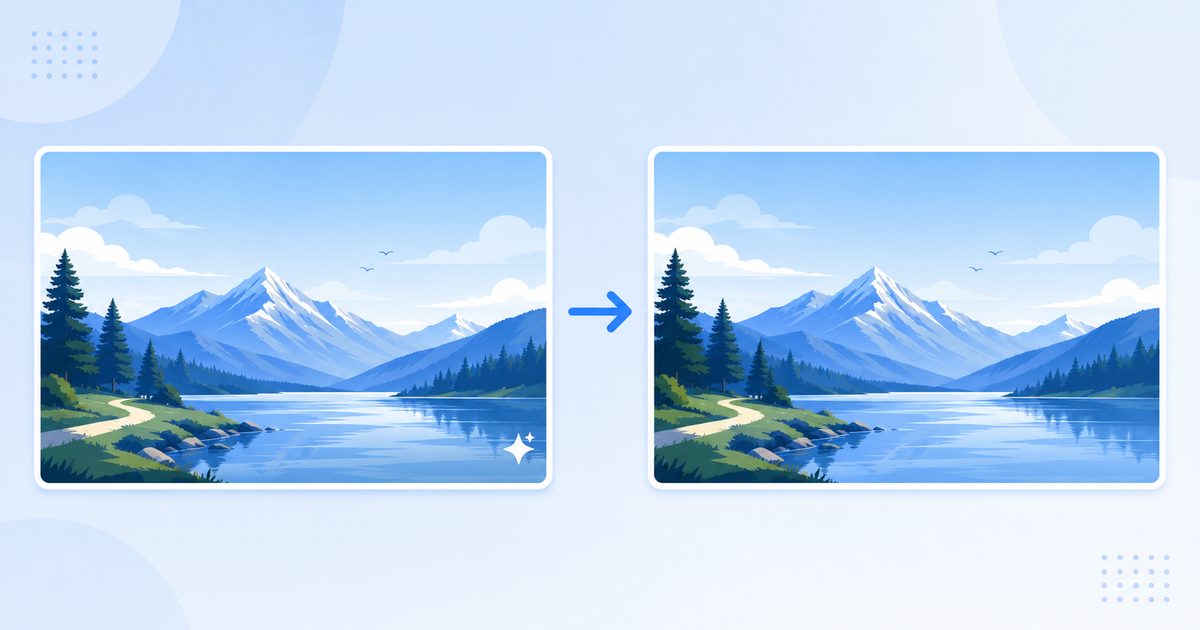
The Gemini Sparkle Watermark
Google's Gemini image generator (and the image features inside NotebookLM) stamps a small four-pointed sparkle "✦" watermark in the bottom-right corner of every image it produces. It's subtle, but it marks the image as AI-generated and looks out of place in presentations, thumbnails, and design work. The same sparkle appears on output from Google's newer image model — see our dedicated guide to removing the Nano Banana watermark from Gemini images.
There are actually two different watermarks on Gemini images, and it's important to understand the difference:
- The visible sparkle ✦ — the small glyph in the corner. This is what you can see and what this guide removes.
- SynthID — an invisible watermark Google embeds in the pixel data itself. This is not something a browser tool removes, and this guide does not touch it.
The Gemini watermark remover targets the visible sparkle. For images still at their original Gemini export size, it removes it losslessly — meaning the result is mathematically identical to the original un-watermarked image. Here's how that works.
Why It's Lossless: Alpha Reversal
This is the part that makes Gemini watermark removal special. Most watermark removers guess what was behind the watermark and fill it in (which leaves artifacts). The Gemini sparkle is different because of how Google applies it.
The sparkle is composited onto the image using alpha blending — the watermark is a semi-transparent white overlay. The math Google uses to blend it is:
watermarked = original × (1 - α) + 255 × αWhere α (alpha) is the transparency of each watermark pixel. Because this is a known, reversible equation, we can solve for the original pixel value:
original = (watermarked - α × 255) / (1 - α)If we know the exact alpha value of every pixel in the watermark, we can perfectly reconstruct the original image underneath. No guessing, no artifacts — the recovered pixels are mathematically exact.
The Alpha Templates
To reverse the blend, the tool needs the precise alpha map of the sparkle. Gemini uses two sparkle sizes depending on the image resolution:
| Image short side | Sparkle size | Margin (right, bottom) |
|---|---|---|
| ≤ 1024px | 48 × 48 px | 32px, 32px |
| > 1024px | 96 × 96 px | 64px, 64px |
The tool ships with pre-measured alpha templates for both sizes. It detects your image's resolution, picks the right template, locates the sparkle position from the known margins, and reverses the alpha blend pixel by pixel. The result is a clean image with zero quality loss.
What About Cropped or Resized Images?
This is the one case where the method breaks down. The tool doesn't search for the sparkle — it applies the alpha template at a fixed inset from the bottom-right corner, taken from the margins in the table above. That's exact on an untouched Gemini export, and it fails as soon as the dimensions change:
- Cropped — the corner inset now points somewhere the sparkle isn't
- Resized — the sparkle is no longer the same size as the template
- Either way, the visible mark survives and a faint ghost of the sparkle shape appears at the spot the tool aimed for
There's no size check to catch this, so the fix is procedural: run the tool on the file exactly as Gemini exported it, then crop or resize the cleaned result afterwards. The engine does carry an inpainting safety net — it scans a 150px region in the bottom-right corner for the sparkle and fills it from surrounding pixels — but that path only triggers if the alpha template itself fails to load, not when an image is an unusual size.
Step-by-Step: Remove the Gemini Watermark
- Go to notebooklmremover.org/gemini-image
- Drop your Gemini-generated image (PNG, JPG, or WebP)
- The tool detects the resolution, applies the matching alpha template, and reverses the sparkle
- Preview the before/after side by side
- Download the clean image — choose to keep the original format or convert to PNG/JPG/WebP
Everything runs in your browser using the Canvas API with the Gemini image watermark remover. Your image is never uploaded to a server.
When Is the Result Lossless?
Alpha reversal works perfectly on Gemini's native output resolutions, including common ones like 1024×1024, 1536×1024, and 2816×1536. The rule isn't really about which resolution you have — it's that the file hasn't been touched since Gemini produced it. Untouched dimensions mean the template lands exactly on the sparkle, and you get a mathematically perfect result.
If you've already edited or resized the image, use the original Gemini export for the best (lossless) result, then resize afterward if needed.
A Note on SynthID
It's worth repeating: this tool removes the visible sparkle, not the invisible SynthID watermark Google embeds in the pixel data. SynthID is designed to survive cropping, compression, and editing, and detecting or removing it is a different (and much harder) problem that browser tools don't address. If your goal is simply to clean up the visible mark for a presentation or design, the sparkle removal is exactly what you need.
Other NotebookLM & Gemini Content
If you're working with other AI export formats, NotebookLM Remover has dedicated tools:
- Infographics — removes the "NotebookLM" text watermark via gradient fill
- Video exports — removes the logo overlay and end card
- PPTX presentations — cleans embedded slide watermarks
- PDF slides — removes watermarks and rebuilds a clean PDF
Frequently Asked Questions
Is the removal really lossless?
Yes, as long as the image is still at its original Gemini export size — the tool reverses the exact alpha-blending equation Google uses to apply the sparkle, recovering the original pixels precisely. If the image was cropped or resized, the template no longer lines up with the sparkle and the result won't be clean.
Does it work on images from Gemini, NotebookLM, and Google AI Studio?
Yes, as long as the image carries the standard Gemini sparkle watermark in the bottom-right corner. The same alpha-blend approach applies across Google's image generation products.
Will it remove the watermark from a screenshot of a Gemini image?
Usually not. A screenshot changes the resolution and pixel alignment, and the tool applies its template at a fixed corner inset rather than searching for the sparkle — so the mark gets missed and a faint ghost appears where the template landed. For best results, use the original downloaded image.
Is my image uploaded anywhere?
No. All processing happens locally in your browser using the Canvas API. There's no server upload, no account, and no data collection.
Ready to remove your NotebookLM watermarks?
Try NotebookLM Remover — Free