
How to Remove NotebookLM Watermarks from Videos
Understanding NotebookLM Video Watermarks
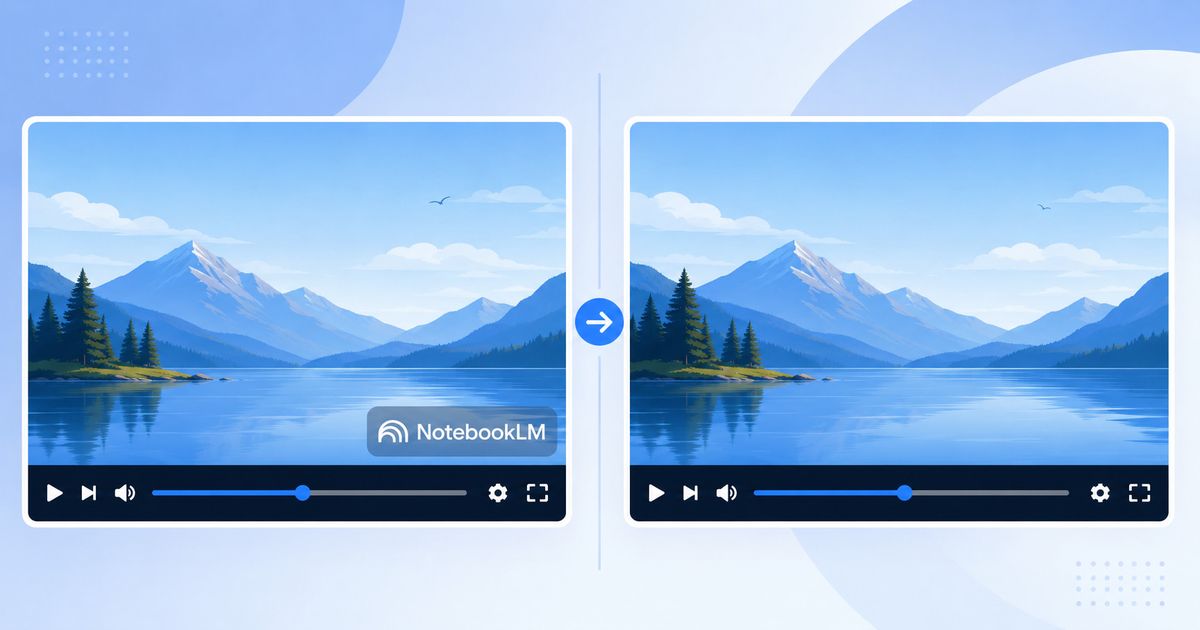
NotebookLM's Video Overviews feature turns your research notes into polished visual summaries with narration, imagery, and transitions. But every exported video carries two separate watermark elements that make it awkward for professional use:
- Bottom-right logo — a persistent "NotebookLM" badge visible throughout the video
- End card — a 2.5-second "Made with Google" screen appended to the end
These watermarks are baked into the video file itself, not added as separate overlay tracks. You can't simply toggle them off in a video editor without re-encoding the entire file.
There is no official removal method for video. Google's plan documentation scopes watermark removal to infographics and slide decks, so even a $199.99/month Ultra subscription leaves your video overviews branded. Here's how to clean them for free instead.
When You Need Clean Video Exports
Removing watermarks from NotebookLM videos makes sense for several legitimate scenarios:
- Educational content — lecture summaries, course materials, student projects
- Research presentations — conference submissions, thesis defenses, academic talks
- Internal demos — team training, knowledge sharing, documentation videos
- Client deliverables — research summaries, strategy presentations, proposal videos
- Social media — sharing insights without third-party branding
In all these cases, you created the underlying research and content. The watermark removal simply prepares your work for professional presentation.
Step-by-Step: Remove NotebookLM Watermarks from Videos
NotebookLM Remover processes videos entirely in your browser using FFmpeg WebAssembly. Your video files never leave your device.
Step 1: Export your video from NotebookLM
In NotebookLM, navigate to the Video Overview you've generated from your research materials. Click the download or export button and save the MP4 file to your computer.
Step 2: Open the video remover tool
Go to notebooklmremover.org/video. No account, login, or software installation required. The entire processing pipeline runs in your browser.
Step 3: Upload your video file
Drag and drop your MP4 file onto the upload zone, or click to browse. The tool accepts video files up to 500 MB on desktop and 100 MB on mobile — the cap exists because everything is held in browser memory, not because of any server limit. Resolution is detected automatically.
Step 4: Configure processing options
The tool offers four settings before processing starts:
- Trim ending watermark — removes the final 2.5 seconds containing the "Made with Google" end card (enabled by default)
- Remove first-frame top watermark — clears the centred badge some exports place at the top of the opening frame (off by default)
- Cinematic mode — applies a light colour grade for a more polished look (off by default)
- Processing mode — 30 fps (default), 15 fps for a smaller file, or keep the original frame rate
The bottom-right logo removal itself is automatic and needs no configuration — it uses FFmpeg's delogo filter with coordinates matched to NotebookLM's standard export resolutions.
Step 5: Process and download
Click "Process Video" and wait for the encoding to complete. Processing time depends on video length and your device's performance:
- 1-minute video — typically 15–30 seconds
- 5-minute video — typically 1–2 minutes
- 10-minute video — typically 3–5 minutes
A progress bar shows encoding status. When complete, preview the result and download the cleaned video file.
How Video Watermark Removal Works
Understanding the technical approach helps you trust the results. NotebookLM videos have predictable watermark placement because Google renders the badge at fixed coordinates for each export resolution:
| Resolution | Watermark position (x, y) | Watermark size (w × h) |
|---|---|---|
| 1080p (1920×1080) | x=1104, y=656 | 770 × 62 px |
| 720p (1280×720) | x=736, y=437 | 513 × 41 px |
With those coordinates known, the pipeline is straightforward:
- Load FFmpeg — the FFmpeg WebAssembly core and WASM binary are loaded into your browser
- Parse video — the file is parsed to detect resolution, frame rate, and codec
- Apply delogo filter — the coordinates above are selected based on the detected resolution
- Trim ending — if enabled, the final 2.5 seconds are cut
- Re-encode — the video is re-encoded with the H.264 codec and AAC audio
- Output — the cleaned video is written out as a new MP4 file
The delogo filter is worth a closer look, because it's the part people misunderstand. It is not a blur and not a crop. It samples the pixels immediately surrounding the watermark rectangle and interpolates a replacement across the interior, frame by frame — the same reconstruction technique professional editors use for logo removal. The "Made with Google" end card needs no such treatment; it's simply the last 2.5 seconds of the timeline, so trimming removes it cleanly.
All processing happens locally in your browser. You can verify this by opening your browser's DevTools Network panel — there are zero upload requests.
Quality and Limitations
Because the delogo filter reconstructs the watermark region from its surroundings, results are cleanest when:
- Background is relatively uniform — solid colors, gradients, or simple textures
- Watermark doesn't overlap important content — text, faces, or key visual elements
- Video resolution matches standard NotebookLM exports — 1080p or 720p
Limitations to be aware of:
- Complex backgrounds — busy patterns or detailed imagery in the watermark region may show visible artifacts
- Overlapping content — if the watermark covers important visual elements, those elements will be partially lost
- Non-standard resolutions — videos re-encoded to custom dimensions no longer match the coordinate table, so the delogo box lands in the wrong place
- Re-encoding quality — the video is re-encoded, which may introduce slight quality loss (typically imperceptible)
For most NotebookLM video exports, the results are clean and professional. Preview the output before using it in production.
Browser Privacy and Local Processing
Unlike cloud-based video editors, NotebookLM Remover runs 100% in your browser:
- No upload — your video is processed by FFmpeg WebAssembly, which runs as a sandboxed application inside your browser tab
- No server — there is no backend that receives, queues, or stores your files
- No account — no login, no email, no record of what you process
- Offline capable — after the first load, the tool works without an internet connection
You can confirm all of this yourself: open Developer Tools (F12) → Network tab while processing a video and watch for outbound requests. There are none. This matters most when you're working with sensitive research materials, client projects, or unpublished work.
Tips for Best Results
- Any modern browser works — the build is single-threaded WebAssembly, so it needs no SharedArrayBuffer and no cross-origin isolation. Chrome, Edge, Firefox and Safari all run it; Chromium is somewhat faster on long clips
- Close other tabs — video processing is memory-intensive. Free up RAM before starting, especially on devices with 8 GB or less
- Keep the original frame rate — unless you specifically need a smaller file, leaving the frame rate untouched preserves the most detail
- Remove the watermark first, resize later — the coordinates only match the original export, so never re-encode before cleaning
- Check the preview — always scrub through the output before downloading to confirm the badge is fully gone
- Cinematic mode for presentations — if the video will be shown to an audience rather than shared internally, the light colour grade adds polish at negligible cost
Alternative Methods for Removing Video Watermarks
FFmpeg command line (free, requires setup)
If you're comfortable with a terminal, you can run the same filter directly:
ffmpeg -i input.mp4 -vf "delogo=x=1104:y=656:w=770:h=62" -t $(echo "$(ffprobe -v error -show_entries format=duration -of csv=p=0 input.mp4) - 2.5" | bc) output.mp4This applies the delogo filter and trims the end card in one pass. The trade-off: you have to install FFmpeg, compute the trim point yourself, and update the coordinates by hand if Google ever moves the badge. It is, however, the only approach that scripts cleanly across a folder of videos.
Desktop video editors (Adobe Premiere, DaVinci Resolve)
You can import the video, mask or crop the watermark area, and re-export. It works, but it's a lot of machinery for a 30-second job — you're launching a $300+ application (or a complex free one) to cover one rectangle. For a walkthrough of the consumer-grade options, see our comparison of removing the watermark with Filmora vs CapCut vs a free browser tool.
Cloud-based watermark removers
Online services will do the job, but they require uploading your video to someone else's server, frequently charge per file, and give you no visibility into how long your footage is retained. For research videos built from private sources, that's a meaningful trade.
NotebookLM Ultra (from $99.99/month)
Worth naming so you can rule it out. Google AI Ultra removes watermarks from infographics and slide decks — not video. Paying between $99.99 and $199.99 a month will not get you a clean video overview, which is precisely why a browser-side tool is the only route here.
Need to Remove Watermarks from Other Formats?
Video is only one of the formats NotebookLM stamps. The same browser-local approach covers the rest:
- PDF slides — renders each page at 2x resolution, removes the watermark, rebuilds a clean PDF
- PPTX presentations — unpacks the archive, cleans the embedded slide images, repacks
- Infographics — detects the watermark region and fills it with a gradient sampled from surrounding pixels
- Gemini images — alpha-channel reversal for lossless removal of the sparkle watermark
- Audio Overviews — trims the spoken "Made with NotebookLM" tag from podcast exports
Frequently Asked Questions
Will the video quality be affected?
The video is re-encoded, which introduces minimal quality loss. For most users the difference is imperceptible — the tool uses H.264 with high-quality settings to preserve visual fidelity.
Does it work with Cinematic Video Overviews?
Yes. Cinematic Video Overviews use the same watermark placement as standard Video Overviews. The tool detects the resolution and applies the matching coordinates for both 1080p and 720p exports.
Will the coordinates break if Google updates NotebookLM?
Possible but unlikely — the placement has been stable since Video Overviews launched. If it changes, the tool is updated to match; it's actively maintained.
Can I process multiple videos at once?
No — the tool processes one video at a time. That's deliberate: FFmpeg WebAssembly holds the whole file in browser memory, and running several encodes in parallel is the fastest way to crash a tab. For genuine batch work, the FFmpeg command line above is the right tool.
What if my video is a different resolution?
NotebookLM currently exports Video Overviews at 1080p or 720p, and the tool is optimized for those two. If you re-encoded the video to a custom resolution before cleaning it, the coordinates no longer line up. Always remove the watermark from the original export, then resize afterward.
Is this legal?
You're removing branding from content you generated from your own source material — closer to deleting a draft stamp from your own document than to circumventing a protection measure. It's still your responsibility to respect NotebookLM's terms of service and the rights attached to your source material. We cover the reasoning in detail in is it legal to remove the NotebookLM watermark.
Why does processing take so long?
Video encoding is computationally expensive, and WebAssembly — while fast — doesn't match native desktop software. Processing time scales with video length and your device's CPU.
Next Steps
Ready to clean your NotebookLM video exports? Visit NotebookLM Remover and upload your first video. The tool is free, requires no account, and processes everything locally in your browser.
For other NotebookLM export formats, check out these guides:
Ready to remove your NotebookLM watermarks?
Try NotebookLM Remover — Free