
How to Remove NotebookLM Watermark from Video — Free, No Software (2026)
The NotebookLM Video Watermark Problem
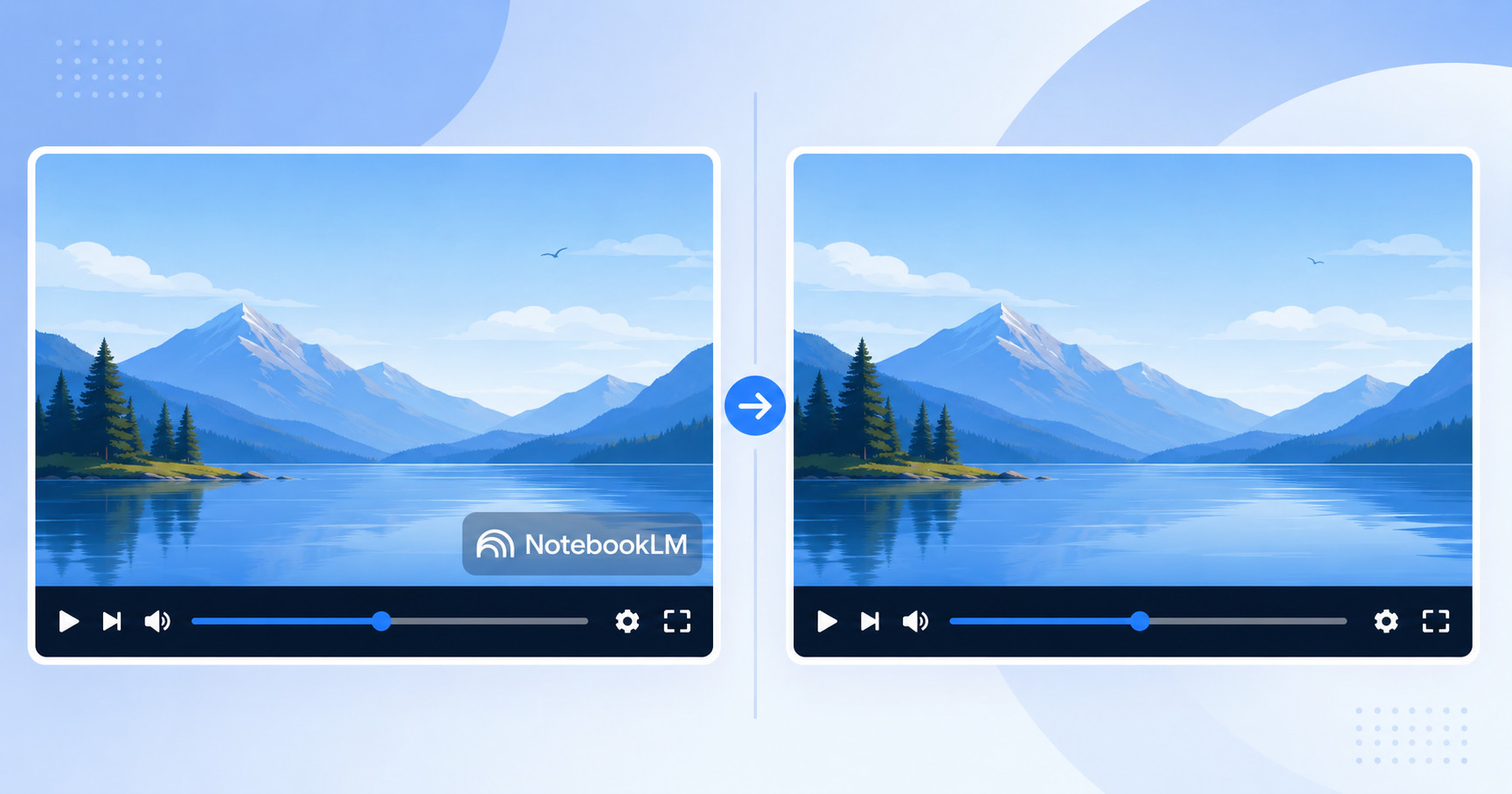
NotebookLM's Video Overviews feature is incredibly useful — it turns your research notes into polished video summaries with narration, visuals, and transitions. But every video you export comes with two watermark elements that make it unusable for professional presentations:
- A persistent logo overlay — a "NotebookLM" badge sits in the bottom-right corner throughout the entire video
- A branded end card — the last 2.5 seconds display a "Made with Google" splash screen
The only official way to remove them is NotebookLM Ultra at $250/month. That's $3,000/year — just to remove a logo from your own content. If you're a student, teacher, freelancer, or content creator, that's a non-starter.
Here's how to remove both watermark elements for free, in under 60 seconds, without installing any software.
Step-by-Step: Remove Video Watermark with NotebookLM Remover
NotebookLM Remover is a free browser-based tool that removes both the logo overlay and the end card from your NotebookLM video exports. Everything runs locally on your device — your video never leaves your computer.
Step 1: Export your video from NotebookLM
In NotebookLM, go to your notebook, generate or open your Video Overview, and download the MP4 file to your computer.
Step 2: Open the video remover
Go to notebooklmremover.org/video. No account needed, no sign-up required.
Step 3: Drop your video file
Drag and drop your MP4 file onto the upload zone, or click to browse. The tool will detect your video's resolution automatically.
Step 4: Choose your settings
You'll see three optional settings:
- Trim ending — enabled by default. This cuts the "Made with Google" end card (last 2.5 seconds)
- FPS — keep original, or re-encode at 15 or 30 fps to reduce file size
- Cinematic mode — applies a subtle color grade for a more polished look
Step 5: Process and download
Click the process button. The tool loads FFmpeg WebAssembly in your browser and removes the watermark overlay using precise pixel coordinates matched to your video resolution. A progress bar shows the encoding status.
When it's done, preview the result and download your clean video. The entire process takes 30–90 seconds depending on video length and your device.
How the Video Watermark Removal Works
Understanding the technical approach helps you trust the results. NotebookLM videos have predictable watermark placement because Google uses fixed coordinates for each resolution:
| Resolution | Watermark Position (x, y) | Watermark Size (w × h) |
|---|---|---|
| 1080p (1920×1080) | x=1104, y=656 | 770 × 62 px |
| 720p (1280×720) | x=736, y=437 | 513 × 41 px |
The tool uses FFmpeg's delogo filter to replace the watermark region with interpolated pixels from the surrounding area. This is the same technique used by professional video editors — it's not a blur or a crop, but a seamless reconstruction of the underlying content.
The "Made with Google" end card is handled by simply trimming the last 2.5 seconds of the video, since there's no useful content in that segment.
Your Video Never Leaves Your Device
Unlike cloud-based video editors, NotebookLM Remover runs 100% in your browser. Here's what that means:
- No upload — your video file is processed using FFmpeg WebAssembly, which runs as a sandboxed application inside your browser tab
- No server — there is no backend server that receives or stores your files
- No account — no login, no email, no tracking of what you process
- No file size limit — since processing is local, the only limit is your device's available memory
You can verify this by opening your browser's Developer Tools (F12) → Network tab while processing a video. You'll see zero outbound requests to any server. Your data stays on your machine, period.
Alternative Methods for Removing Video Watermarks
FFmpeg command line (free, requires setup)
If you're comfortable with terminal commands, you can use FFmpeg directly:
ffmpeg -i input.mp4 -vf "delogo=x=1104:y=656:w=770:h=62" -t $(echo "$(ffprobe -v error -show_entries format=duration -of csv=p=0 input.mp4) - 2.5" | bc) output.mp4This applies the same delogo filter and trims the ending. The downside: you need to install FFmpeg, calculate the trim point manually, and adjust coordinates if Google changes the watermark position.
Desktop video editors (Adobe Premiere, DaVinci Resolve)
You can import the video into a professional editor, crop or mask the watermark area, and re-export. This works but is overkill for a simple watermark removal — you're launching a $300+ application (or a complex free one) to do a 30-second job.
NotebookLM Ultra ($250/month)
The official solution. Subscribe to Google AI Ultra, and your exports come without watermarks. Worth it for enterprise teams; hard to justify for individual users making occasional exports.
Tips for Best Results
- Use Chrome or Edge — FFmpeg WebAssembly requires SharedArrayBuffer, which works best in Chromium-based browsers
- Close other tabs — video processing is memory-intensive. Free up RAM by closing unused tabs, especially on devices with 8GB RAM or less
- Keep original FPS — unless you need a smaller file size, keeping the original FPS preserves the best quality
- Check the preview — always preview the output before downloading to confirm the watermark is fully removed
- Cinematic mode — if your video will be presented to an audience (not just shared internally), the cinematic color grade adds a professional touch at no quality cost
Need to Remove Watermarks from Other Formats?
NotebookLM Remover handles every format NotebookLM can produce:
- PDF Slides — renders at 2x resolution, removes watermark, rebuilds clean PDF
- PPTX Presentations — unpacks, cleans embedded watermark images, repacks
- Infographics — detects watermark region, fills with gradient from surrounding pixels
- Gemini Images — alpha-channel reversal for lossless removal of the sparkle watermark
- Audio Overviews — removes the spoken "Made with NotebookLM" tag from podcast exports
Check out our complete watermark removal guide for a comparison of all methods across all formats.
Frequently Asked Questions
Does it work with NotebookLM Cinematic Video Overviews?
Yes. Cinematic Video Overviews use the same watermark placement as standard Video Overviews. The tool automatically detects the resolution and applies the correct coordinates for both 1080p and 720p exports.
Will the watermark coordinates change if Google updates NotebookLM?
Possible but unlikely — Google has used consistent watermark coordinates since the Video Overviews launch. If they change, NotebookLM Remover will be updated to match. The tool is actively maintained.
Can I process multiple videos at once?
Currently the tool processes one video at a time. For batch processing, check out the notebooklm-remover CLI on npm, which supports scripting and automation.
What if my video is a different resolution (not 1080p or 720p)?
NotebookLM currently exports Video Overviews at either 1080p or 720p. If you've re-encoded your video to a custom resolution before removing the watermark, the coordinates won't match. Always remove the watermark from the original export file, then resize afterward if needed.
Ready to remove your NotebookLM watermarks?
Try NotebookLM Remover — Free