
Complete Guide to Removing AI Tool Watermarks in 2026
Why AI Tools Add Watermarks
AI content generation tools like Google NotebookLM, Gamma, and Gemini add watermarks to their free-tier outputs for brand visibility and usage tracking. These watermarks appear in different forms depending on the tool and export format:
- NotebookLM — "Created with NotebookLM" footer on PDF slides, "Made with Google" closing screen on videos, spoken watermark in audio overviews
- Gamma — "Made with Gamma" branding on presentation slides and PDFs
- Gemini — Semi-transparent sparkle overlay on generated images
- Other AI tools — Various text overlays, logos, or embedded metadata tags
While paid subscriptions typically remove these watermarks, most users need a free alternative. This guide covers proven methods to clean AI-generated content without compromising quality or privacy.
Understanding Different Watermark Types
Before removing a watermark, you need to identify what type you're dealing with:
1. Visible Watermarks
These are directly printed onto the content as pixels:
- Text overlays — "Created with [Tool]" text rendered on the page
- Logo badges — Brand icons positioned in corners or margins
- Semi-transparent overlays — Translucent graphics (like Gemini's sparkle)
2. Embedded Watermarks
These live inside the file structure:
- PPTX image watermarks — Watermarked images embedded in presentation slides
- Video frame watermarks — Burned into video frames or appended as closing screens
- Audio segments — Spoken disclaimers at the beginning or end of audio files
3. Metadata Watermarks
Hidden in file metadata:
- EXIF tags — Creator tool name, generation timestamp, AI model version
- C2PA provenance — Content authentication and origin metadata
- IPTC fields — Copyright and attribution information
How to Remove NotebookLM Watermarks
PDF Slide Decks
NotebookLM slide exports include a "Created with NotebookLM" footer on every page. The cleanest removal method uses browser-local processing:
- Visit NotebookLM Remover PDF tool
- Upload your PDF file (processed entirely in your browser)
- The tool renders each page to canvas, detects the watermark region using connected component analysis, and fills it using gradient interpolation
- Download the clean PDF (visual layout preserved, though no longer text-selectable)
Technical note: This method converts the PDF to an image-based format. If you need an editable PDF, use the PPTX method below instead.
PPTX Presentations
For editable PowerPoint files:
- Use the PPTX watermark remover
- Upload your .pptx file
- The tool unzips the PPTX, processes all embedded images in
ppt/media/, removes watermarks from each, and repacks the presentation - Download the clean PPTX with animations, transitions, and notes intact
This method preserves full editability — you can open the file in PowerPoint and modify text, layouts, and styles normally.
Video Overviews
NotebookLM video exports include a right-corner logo and a 2.5-second "Made with Google" closing screen:
- Go to video watermark remover
- Upload your MP4 file (max 500MB)
- Processing uses FFmpeg WASM to apply a
delogofilter targeting common 720p/1080p export positions - Optional: enable ending trim to remove the closing screen
- Download the re-encoded MP4 (audio copied when possible)
Privacy note: All video processing happens in your browser via WebAssembly. No frames are uploaded to any server.
Audio Overviews
Audio exports contain a spoken "This overview was created with Google NotebookLM" segment:
- Use the audio podcast trimmer
- Upload your MP3 file
- The tool detects and removes the watermark segment (typically first 2-3 seconds)
- Download the trimmed audio
Infographics
NotebookLM infographics have a corner watermark similar to slides:
- Visit infographic remover
- Upload your PNG, JPG, or WebP file
- Connected component analysis detects the watermark bounds
- Vertical gradient fill reconstructs the background
- Download the clean image at original resolution
How to Remove Gamma Watermarks
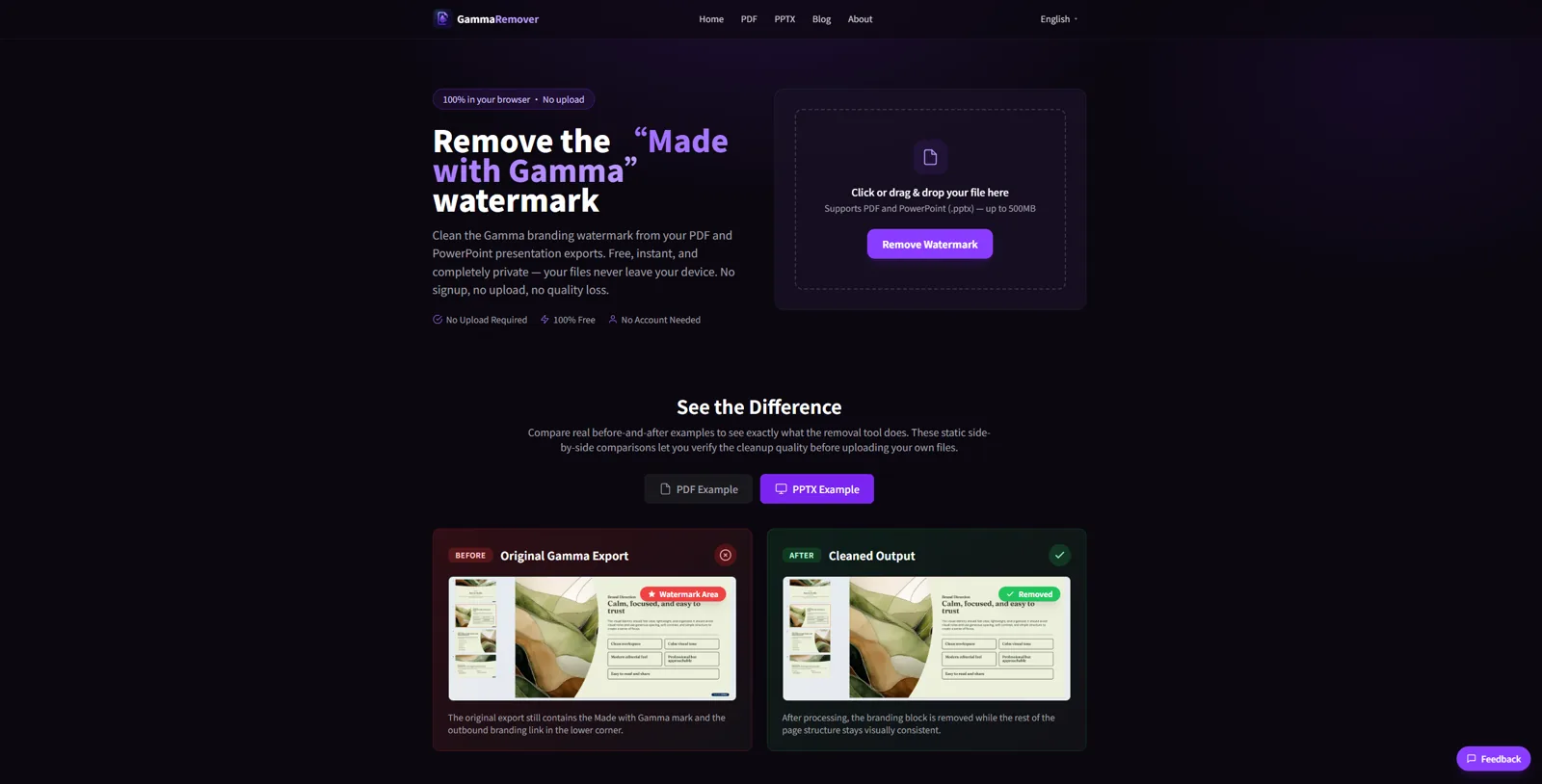
Gamma presentations export with "Made with Gamma" branding. If you're working with Gamma presentations specifically, we recommend using a dedicated tool designed for Gamma's watermark patterns — GammaRemover.com offers browser-local processing optimized for Gamma PDF and PPTX exports.
For Gamma PDF Exports
Use a dedicated Gamma watermark remover for optimal results. The tool detects the "Made with Gamma" branding regardless of position and cleanly removes it while preserving slide layouts.
For Gamma PPTX Exports
For editable Gamma presentations, the Gamma PPTX remover unzips the file, processes embedded images, and repacks everything while maintaining full PowerPoint compatibility.
How to Remove Gemini Watermarks
Gemini image exports include a semi-transparent sparkle overlay. Unlike text watermarks, this requires mathematical reversal of the alpha compositing:
- Go to Gemini watermark remover
- Upload your Gemini-generated image
- The tool applies the alpha reversal formula:
original = (watermarked - alpha * 255) / (1 - alpha) - Download the losslessly recovered image
Why this works: Gemini's watermark is additive alpha blending. By reversing the compositing math, we recover the exact original pixels — not an approximation.
Removing Metadata Watermarks
Even if you remove visible watermarks, AI tools often embed metadata tags that reveal the generation source:
- Use the metadata cleaner
- Upload your image file
- The tool strips EXIF, IPTC, XMP, C2PA, and custom metadata
- Download the clean image with only essential display data
Common metadata fields removed: Creator, Software, AI Model, Generation Timestamp, Copyright, License, Provenance Chain.
Best Practices for Watermark Removal
1. Use Browser-Local Tools First
Avoid uploading sensitive documents to online services. Browser-based tools like NotebookLM Remover and GammaRemover process everything locally using WebAssembly — your files never leave your device.
2. Keep Original Files
Always save a copy of the watermarked original before processing. If the removal introduces artifacts, you can try different tools or settings.
3. Check Output Quality
After removal, verify:
- No visible artifacts or blurring in the watermark area
- Text remains readable (for PDF/PPTX)
- Colors haven't shifted
- File size is reasonable (excessive size may indicate quality loss)
4. Respect Usage Rights
Removing a watermark doesn't change copyright or licensing. Use cleaned content only in contexts where you have appropriate rights — personal projects, education, or work where you generated the original content.
Tool Comparison Table
| Tool | Best For | Privacy | Cost | Formats |
|---|---|---|---|---|
| NotebookLM Remover | NotebookLM, Gemini content | 100% local | Free | PDF, PPTX, MP4, MP3, PNG, JPG |
| GammaRemover | Gamma presentations | 100% local | Free | PDF, PPTX |
| Desktop OCR tools | Complex layouts | Local | Paid | PDF, images |
| Online removers | Quick edits | Upload required | Varies | Images |
Legal and Ethical Considerations
Watermark removal is a technical capability, not a license to misuse content:
- Personal use — Removing watermarks from your own AI-generated content (presentations, notes, reports you created) is generally acceptable
- Commercial use — Check the tool's terms of service. Many AI platforms prohibit removing branding for commercial redistribution
- Copyright — Watermark removal doesn't override copyright. If you don't have rights to the underlying content, cleaning the watermark doesn't grant them
- Attribution — Even without a visible watermark, proper attribution may still be required by the platform's terms
In general: remove watermarks from content you generated for your own purposes. Don't remove watermarks to misrepresent authorship or evade licensing restrictions.
Common Questions
Can I remove watermarks from NotebookLM Plus content?
Yes, and you will need to. Paid Plus and Pro exports do carry the watermark — Google's plan table lists watermark removal as No for every tier below Ultra, and Ultra only covers infographics and slide decks. A browser-local tool removes it from any export, on any plan.
Will removing watermarks affect file quality?
It depends on the method. Browser-local tools like NotebookLM Remover and GammaRemover use lossless or near-lossless techniques. Online "magic erase" tools may introduce compression artifacts.
Are there watermark removers for other AI tools?
Yes. The same techniques work for watermarks from Canva, Beautiful.ai, Pitch, and similar presentation tools. Look for tools that support your specific file format (PDF, PPTX, or images).
Can I remove watermarks from AI-generated videos?
Yes, for videos with corner logos (like NotebookLM). Tools that support FFmpeg's delogo filter can remove position-fixed watermarks. Removing dynamic or center-screen watermarks is much harder.
Is it safe to use online watermark removers?
Only if your content is non-sensitive. Many online tools upload your file to their servers for processing, which poses privacy and security risks. For confidential documents, always use browser-local tools that process files entirely on your device.
Do I need to pay for NotebookLM Plus to avoid watermarks?
No — and paying wouldn't help, since Plus and Pro exports are watermarked too. Free browser-based tools like NotebookLM Remover remove watermarks from any export at no cost. A paid subscription buys you higher generation limits, not clean files.
Can watermark removal be detected?
Visible watermark removal is obvious if someone compares to the original. Metadata removal is harder to detect unless you know what metadata should be present. Some platforms may use invisible watermarking techniques (steganography) that survive visible watermark removal.
What about watermarks on AI-generated code or text?
Text and code don't have visible watermarks in the traditional sense, but some AI platforms embed metadata comments or headers. Remove these manually by editing the file.
Can I batch-remove watermarks from multiple files?
Most browser-based tools process one file at a time due to memory constraints. For batch processing, consider desktop OCR software or scripted approaches using libraries like pdf-lib, JSZip, or FFmpeg.
Where can I learn more about Gamma watermark removal?
For detailed guides specific to Gamma.app exports, visit GammaRemover's blog. They cover Gamma-specific watermark patterns, PPTX processing, and comparison with other tools.
Ready to remove your NotebookLM watermarks?
Try NotebookLM Remover — Free